Windows 10 / 11 · Version 1.0.0

Your head is full. Your list shouldn’t be.

TaskDock is a quiet task list and focus timer that lives in your tray, stays on your computer, and helps you do one thing at a time.

FREE OF ACCOUNTS · WORKS OFFLINE · SUMMON WITH CTRL + SPACE

The TaskDock mini window during a focus session, showing the task Draft the Q4 roadmap outline with a countdown timer
07:40 · Before the day starts

It all lands in your head first.

“Reply to Maya. Book the dentist. Review Sam’s pull request. Don’t forget the parcel.”

You know the feeling: five things, none written down. Hit Ctrl + Space and TaskDock slides up from the tray with the cursor already in the box.

Type it the way you would say it. “Call Sam tomorrow 3pm /high #work” becomes a task with a day, a time, a priority and a tag. Press Enter and it is captured, so your head can let go.

QUICK ADD · HOW THE SYNTAX WORKS →
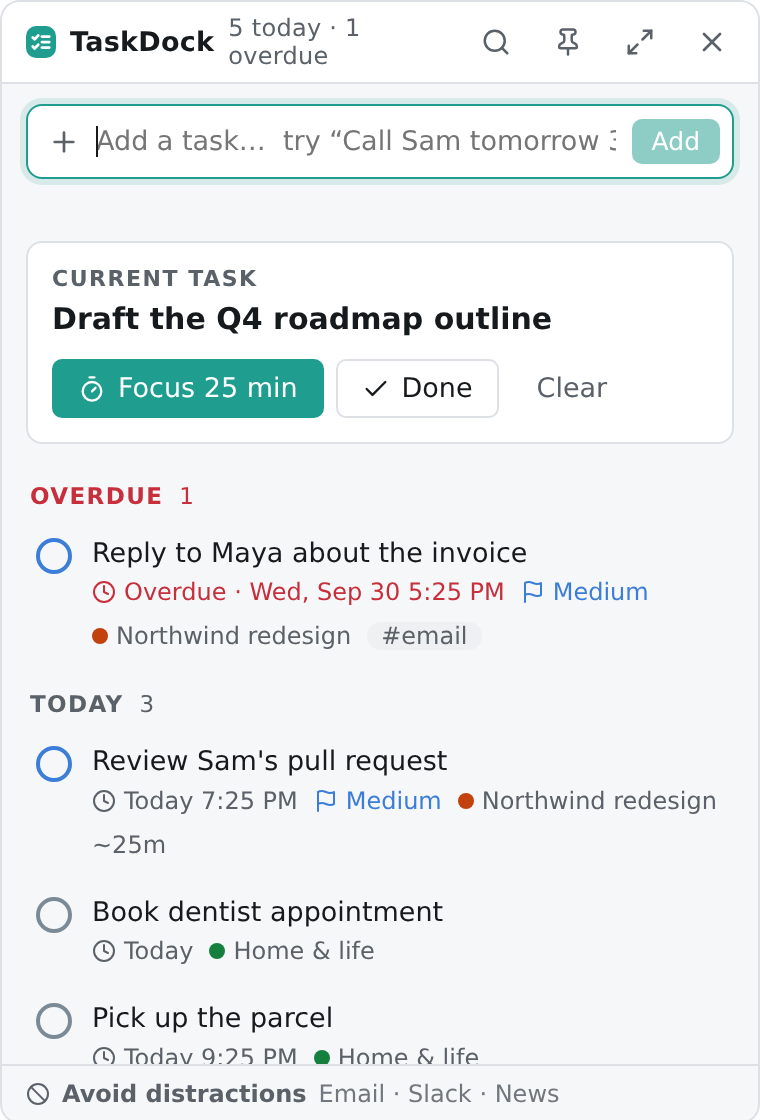
The TaskDock mini window with a quick add box, a current task card and a list of overdue and today tasks
The mini window: capture, current task, what is due.
08:30 · Choosing

Out of everything, one thing.

“If I only got one thing done today, what would it be?”

Today shows what is overdue, due today, and everything else, in an order that makes sense. Pick the one that matters and make it your current task.

It is pinned at the top of the mini window and never repeated in the list below. There is never a doubt about what is next.

WANT THE WHOLE PICTURE? THE FULL WINDOW HAS TODAY, UPCOMING, PROJECTS, HISTORY, ANALYTICS AND CALENDAR.
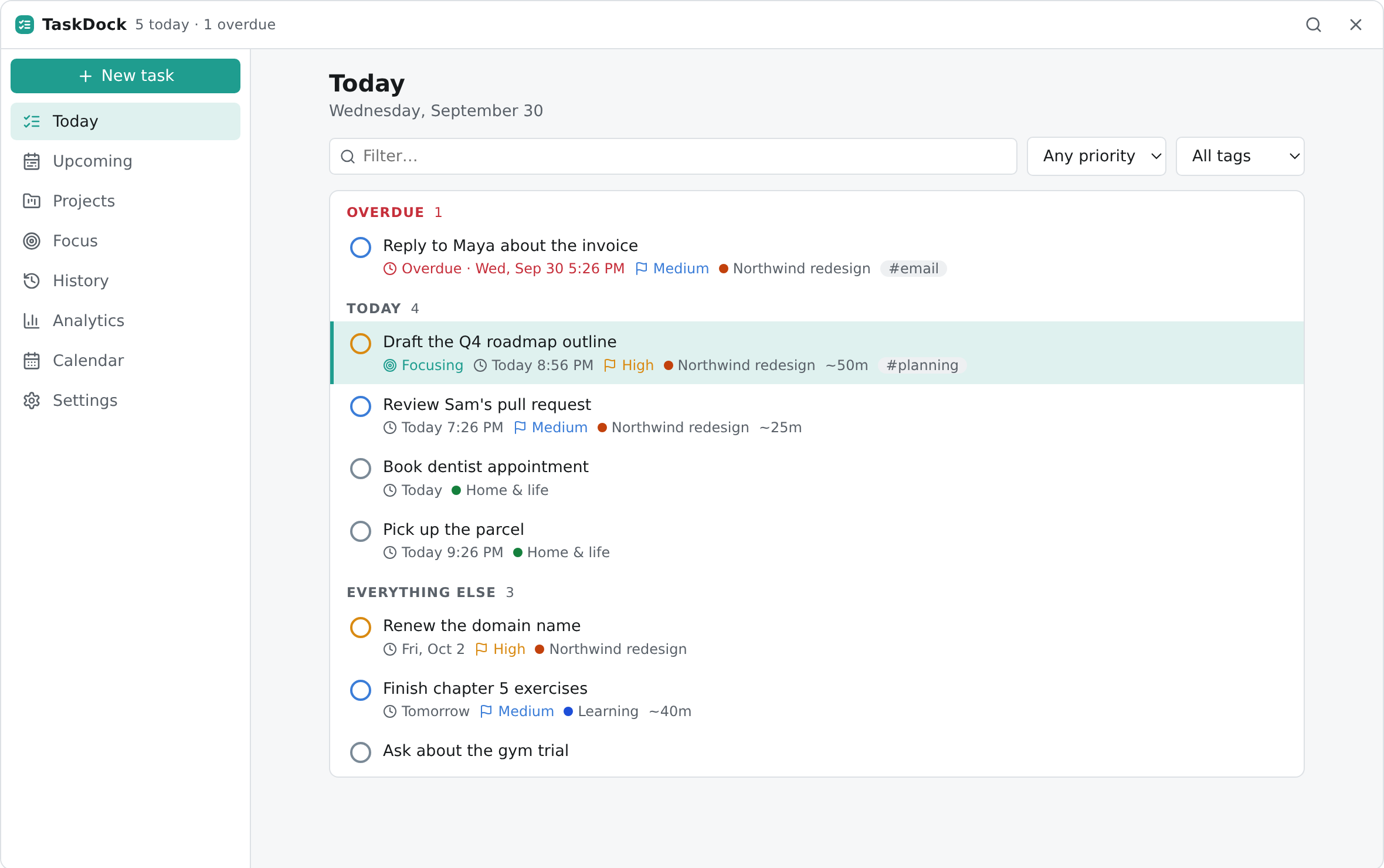
The TaskDock full window on the Today page, with one overdue task, four due today, and the focused task highlighted
The full window, Today view. The task you are focusing on is highlighted.
09:00 · Starting

Press start. Nothing else.

“Fifty minutes. Just this.”

One click starts a timed session on your current task. Pause it when the phone rings, add five minutes when you are in flow, or finish the task right from the panel.

The timer runs on timestamps, not ticks. Sleep, a crash or a hidden window cannot make it drift, and every session is saved before the screen changes.

FOCUS · HOW SESSIONS WORK →
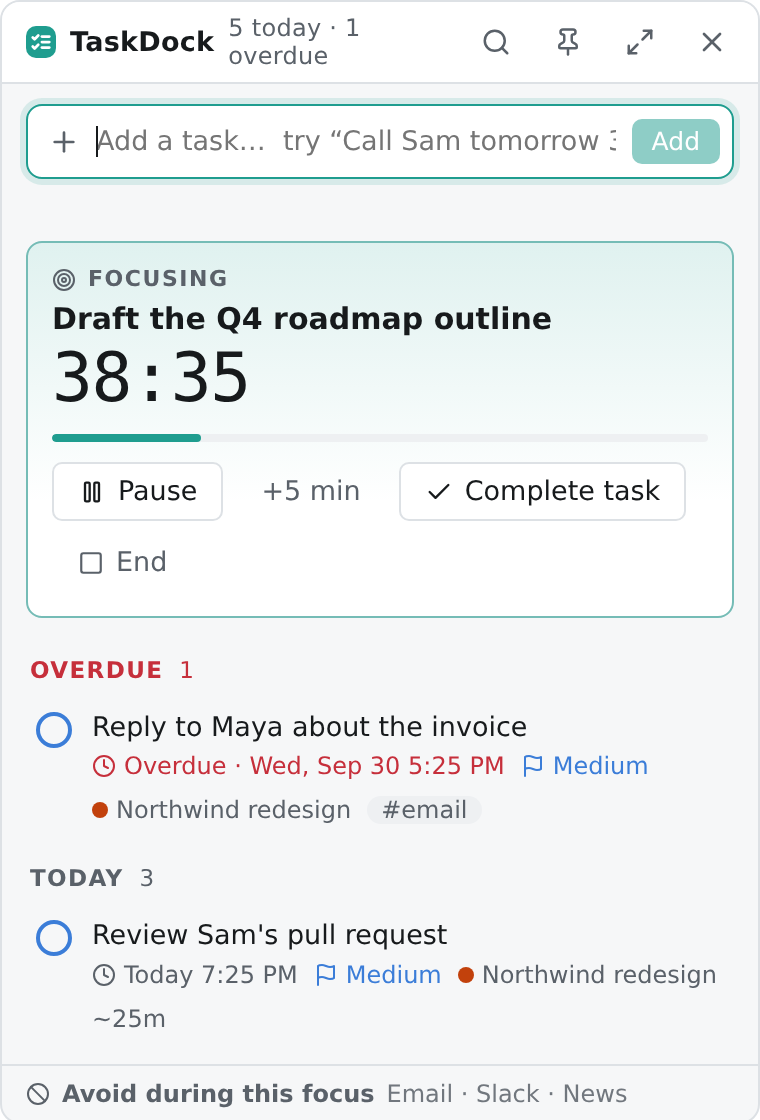
The mini window in a focus session with a 38 minute countdown, Pause, plus five minutes and Complete task buttons
A session in progress: pause, extend, or complete the task.
09:25 · The pull

Then the notification shows up.

“Just a quick look at email.”

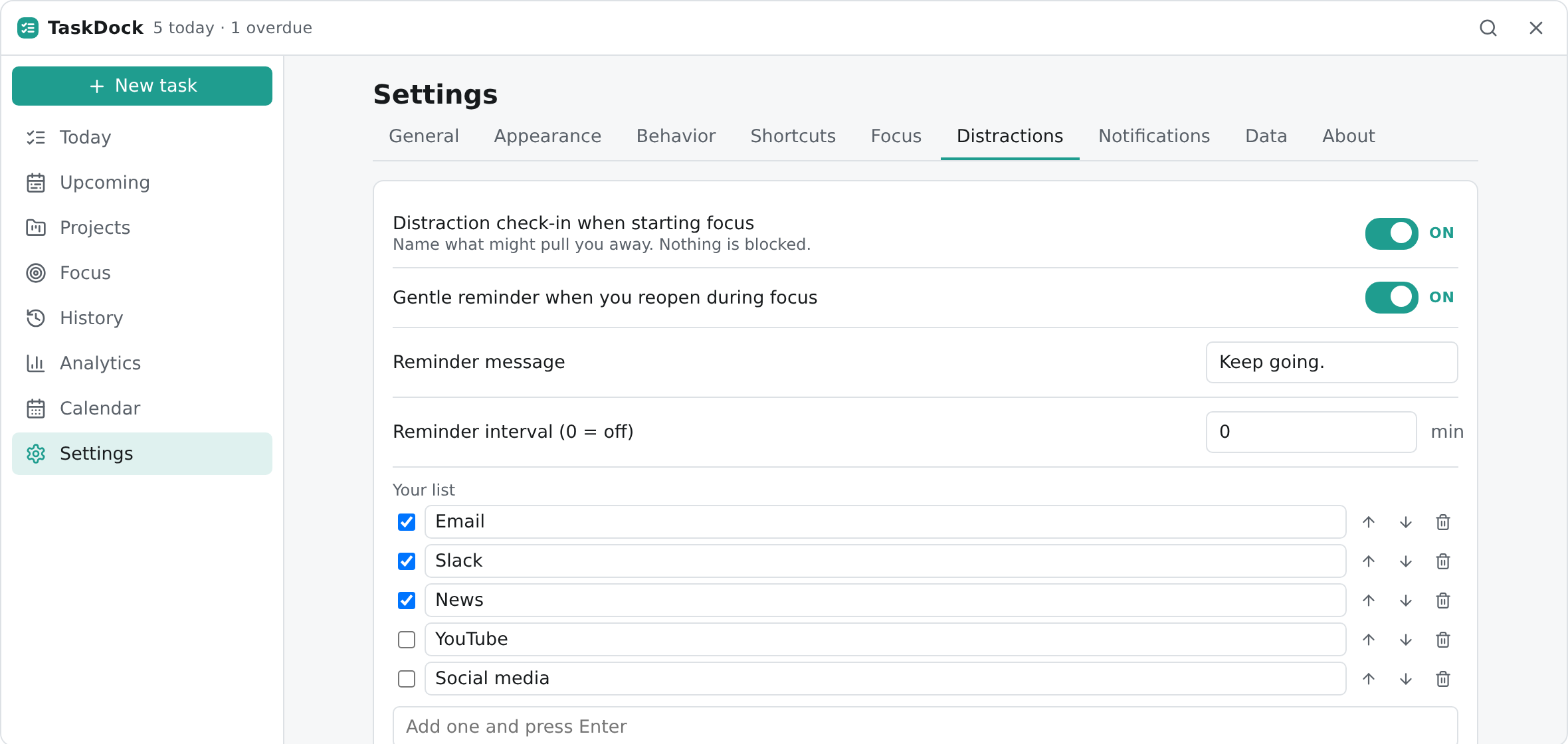
Before you start, you can name what usually pulls you away: email, chat, the news. While you focus, that short list sits at the bottom of the window as a quiet reminder. You edit it in place, any time.

It is a nudge, not a wall. TaskDock does not block websites or other apps. If you hide the window and come back mid-session, a gentle re-entry card reminds you what you were doing and lets you continue.
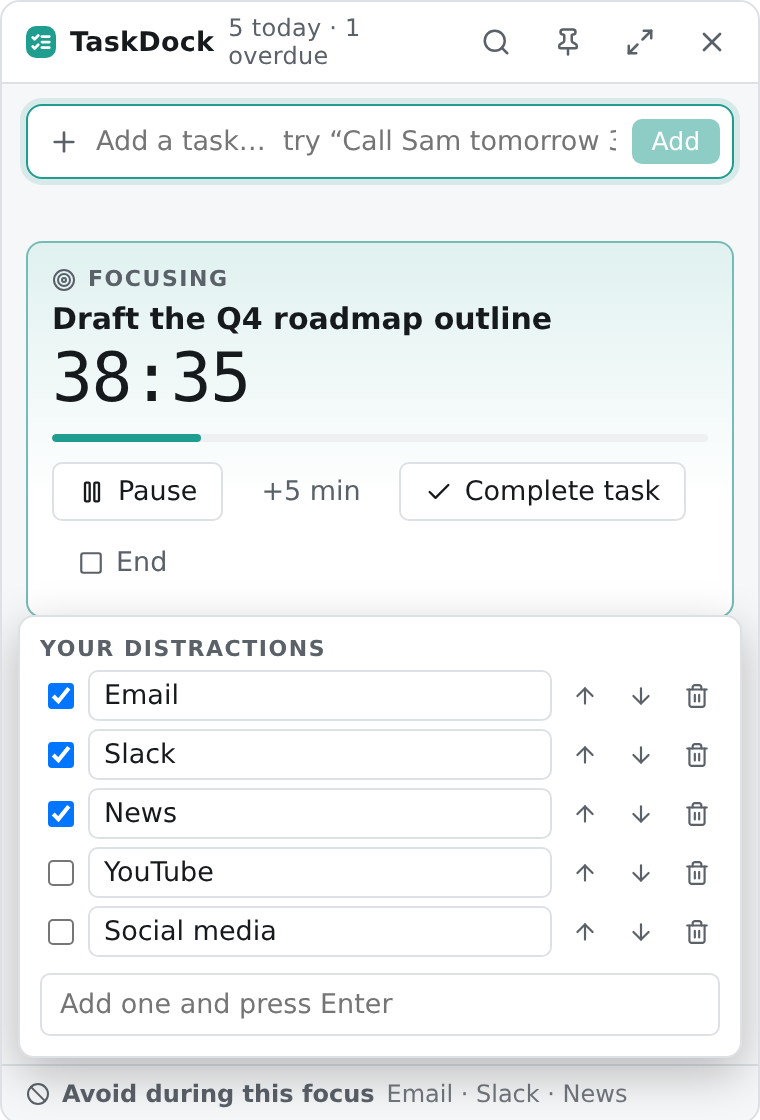
The mini window with the Your distractions panel open, listing Email, Slack and News ticked, plus YouTube and Social media
The Avoid bar, open. Tick what applies to this session.
Settings, Distractions tab, with reminder options and the editable list of distractions
Settings → Distractions. Your list, your words.
11:10 · Done

Finished, and the next step is obvious.

“That’s one. What’s next?”

Complete the task while the timer runs and the session ends with it, in one step. Slipped? Undo it. Recurring tasks give you exactly one next occurrence, not a pile of copies.

Every session lands in your focus history, so the morning’s work is there when you want to see it.
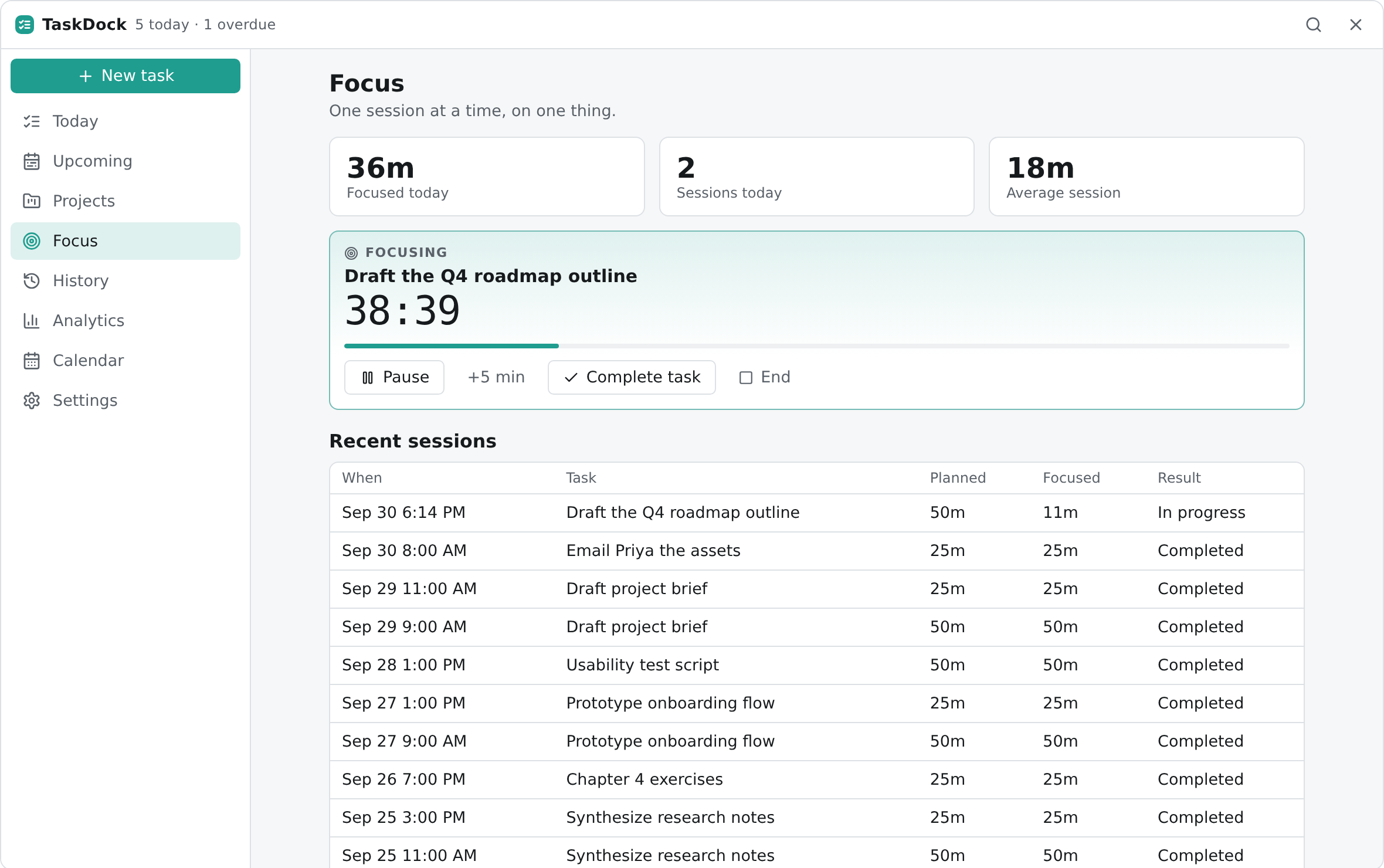
The Focus page with today's focus totals, the running session and a table of recent sessions
The Focus page: today’s totals and recent sessions.
17:30 · Looking back

End the day kindly.

“Did I actually get anything done?”

You did, and now you can see it. Finished tasks, focus time and sessions are computed from your own data, on your own computer. Nothing is uploaded and nobody is grading you.
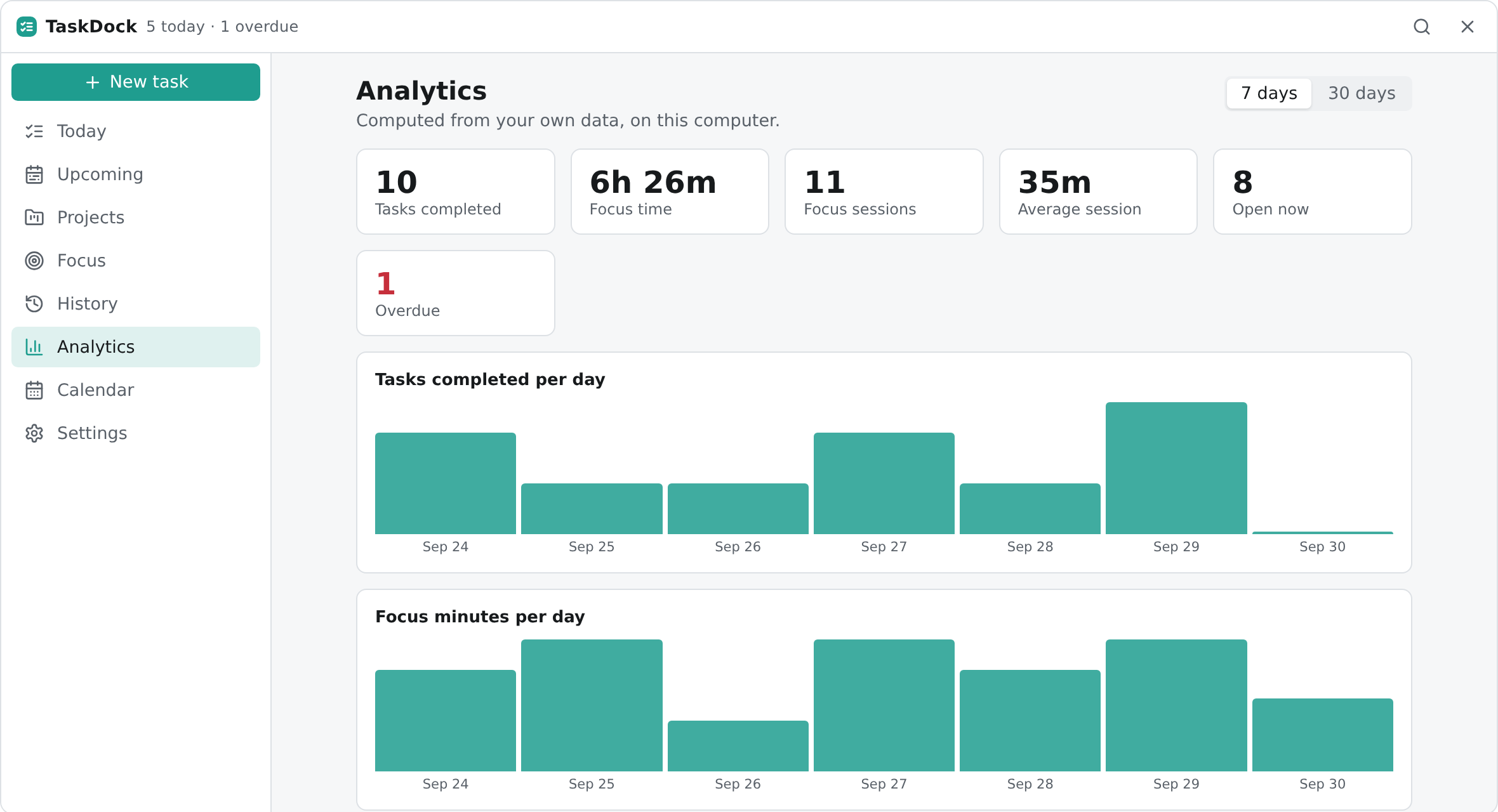
The Analytics page with totals for tasks completed and focus time, and daily bar charts
Analytics over the last seven days.
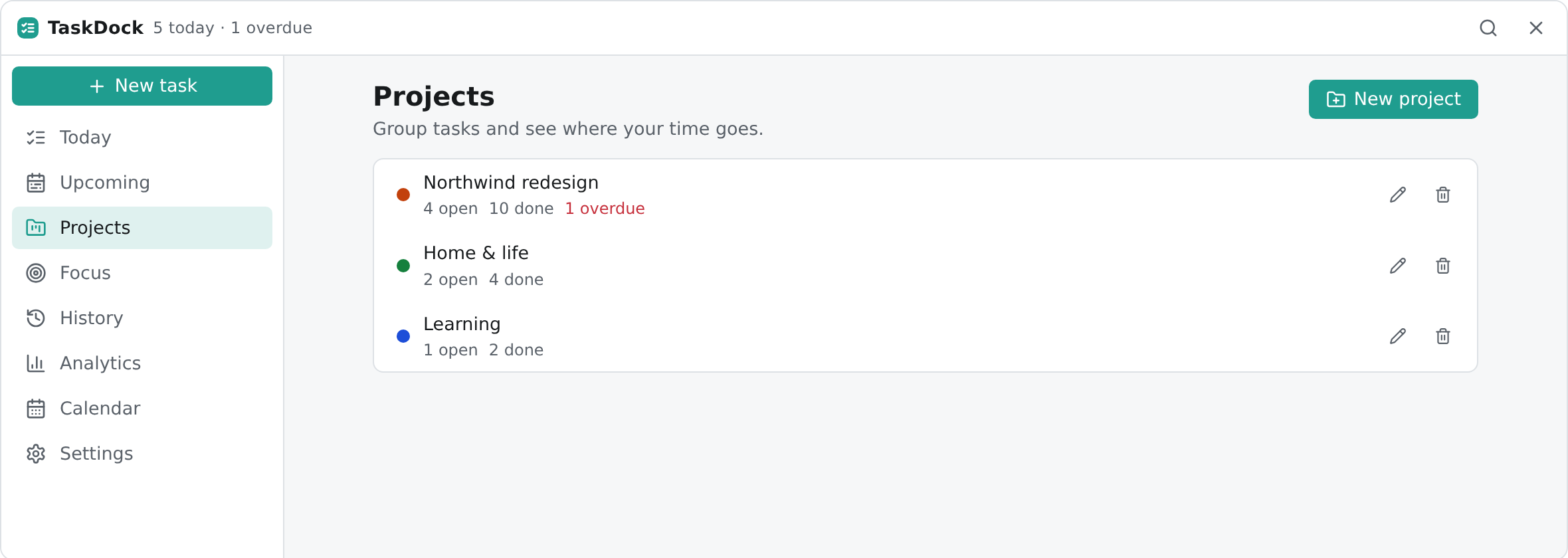
The Projects page listing three projects with open, done and overdue counts
Projects: where your tasks and time go.
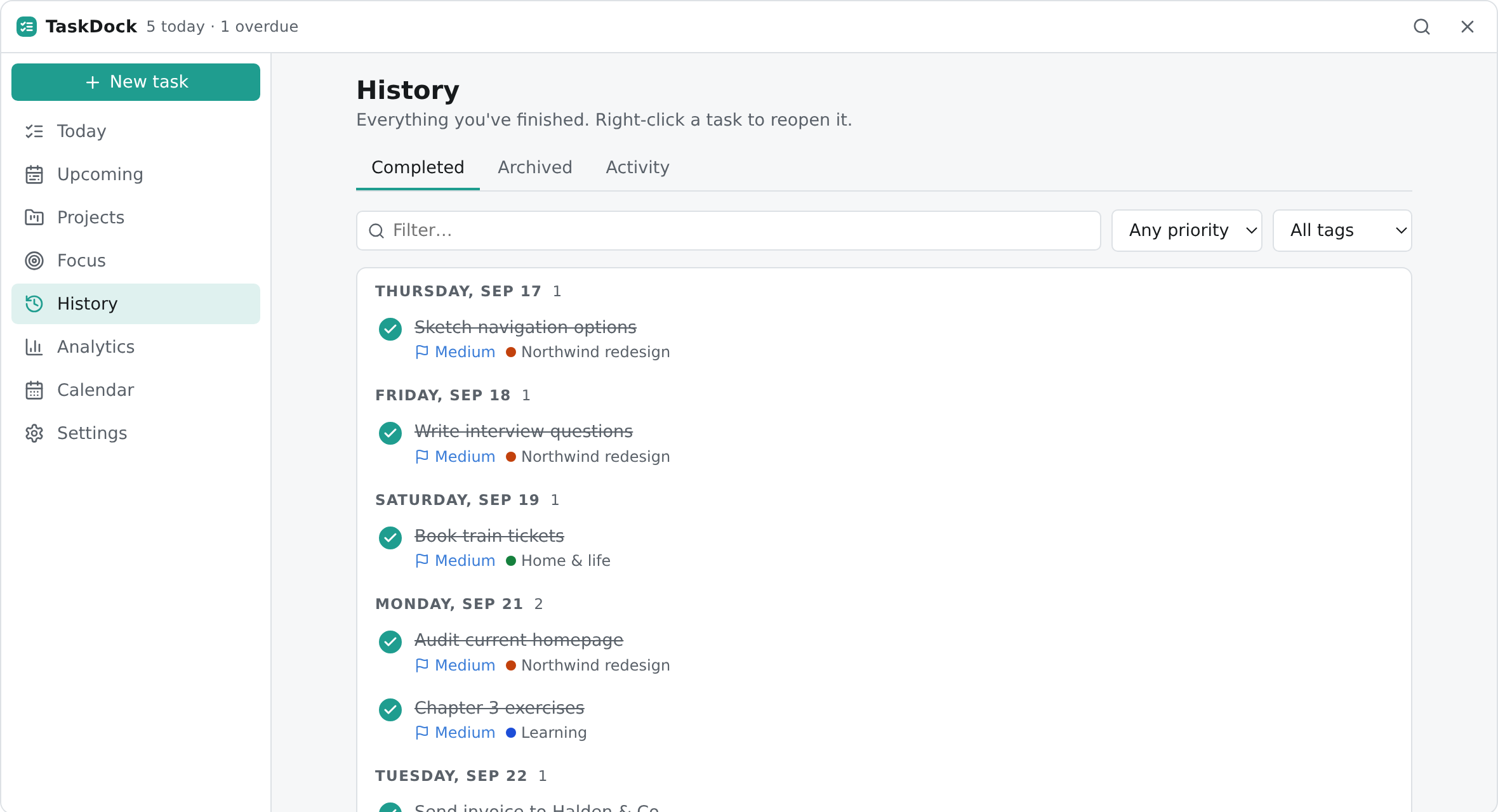
The History page listing completed tasks grouped by day
History: everything you finished.

Screenshots show the TaskDock interface running in a browser with sample data, made up for illustration. Your own tasks never appear here. Fonts and window chrome differ on Windows.

And underneath

Small on the screen. Careful underneath.

  1. Quick add that reads like you write

    “Call Sam tomorrow 3pm /high #work @Clients” becomes a task with a day, time, priority, tag and project. Unrecognised words stay in the title.

  2. One current task

    Pick the thing you are doing now. It is pinned on top and never repeated in the list below.

  3. A timer you can trust

    Built on timestamps, so sleep, crashes and hidden windows can’t make it drift. Sessions are saved before the screen changes.

  4. Avoid distractions, gently

    A short list of what usually pulls you away, shown while you focus. A reminder, never a blocker.

  5. Mini window and full window

    A narrow tray window for speed, and a dashboard with Today, Upcoming, Projects, History, Analytics and Calendar.

  6. Recurring tasks that behave

    Complete one, get exactly one next. Weeks overdue doesn’t create a pile of copies.

  7. Backups you can read

    JSON and CSV export, validated imports with a summary, automatic backups, and a recovery screen that never deletes your data.

  8. Made for the keyboard

    Global shortcuts, a command palette on Ctrl + K, visible focus rings and reduced-motion support.

Within reach

Always one keystroke away.

Global shortcuts work from any app. You can change every one of them.

Ctrl + Space

Summon TaskDock. It only ever brings it forward; it never hides it.

Ctrl + Shift + Space

Jump straight to quick add and capture a task in seconds.

Ctrl + Alt + F

Start a focus session on your current task.

All keyboard shortcuts →

Privacy

Your list is yours. It never leaves the PC.

Tasks live in a single SQLite file in your user profile. You can export, back up or erase it whenever you like.

  • Account
  • Network access
  • Telemetry
  • Cloud sync
  • AI features
  • Website blocking

Read the privacy page →

Ready when you are

Clear the list. Start the clock.